
This guide provides instructions for installing and configuring the Duplicate Order Prevention application via Adobe Commerce and the Adobe Developer Console.
1. Adobe Commerce Requirements
Before installing the App Builder application, ensure your Adobe Commerce instance has the following dependencies installed:
| Package Name | Version Requirement |
|---|---|
magento/commerce-eventing |
^1.0 |
magento/commerce-webhooks |
^1.0 |
magento/commerce-backend-sdk |
>=3.0 |
[!IMPORTANT]
If you are using Magento 2.2 and not upgrading, you must set the following in yourcomposer.json:{ "magento/commerce-backend-sdk": "3.3.0 as 2.0" }
Installation Commands
Run these commands in your Magento root directory:
composer require magento/commerce-eventing=^1.0 --no-update
composer require magento/commerce-webhooks=^1.0 --no-update
composer require "magento/commerce-backend-sdk": ">=3.0" --no-update
# (Optional: See 2.2 override note above)
composer update
bin/magento module:enable --all
bin/magento setup:upgrade
2. Installation via Adobe Admin
The Duplicate Order Prevention app is installed through the Adobe ecosystem and appears in your Adobe Commerce admin.
- Adobe Exchange: Find the application on Adobe Exchange and click Install.
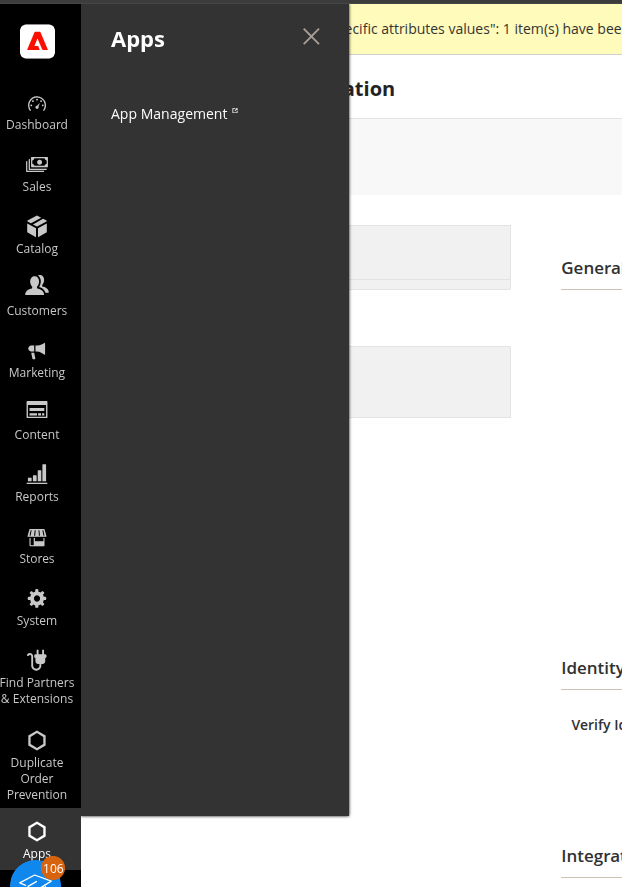
- Commerce Admin: After installation, the app appears in the left sidebar under Apps → Duplicate Order Prevention. You can also open Apps → App Management to manage or configure the app.
3. Adobe Developer Console: Adobe automatically creates a workspace, deploys the app to Adobe I/O Runtime, and provides an isolated environment for your data and configuration.
3. Business Configuration (Required)
Once the app is installed, configure the app in App Management and set up the IMS technical account in your Commerce instance so the app can access Magento APIs.
3.1 App Management (Adobe Experience Cloud)
- In Commerce Admin, go to Apps → App Management.
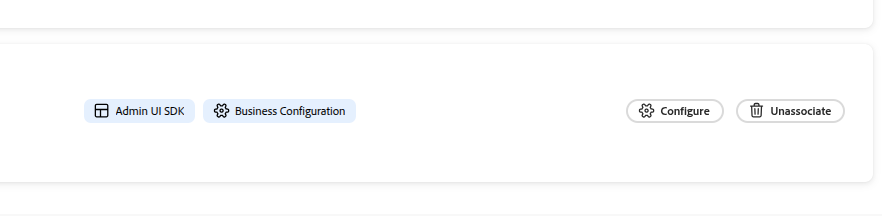
- Find Duplicate Order Prevention (with Admin UI SDK and Business Configuration). Click Configure.
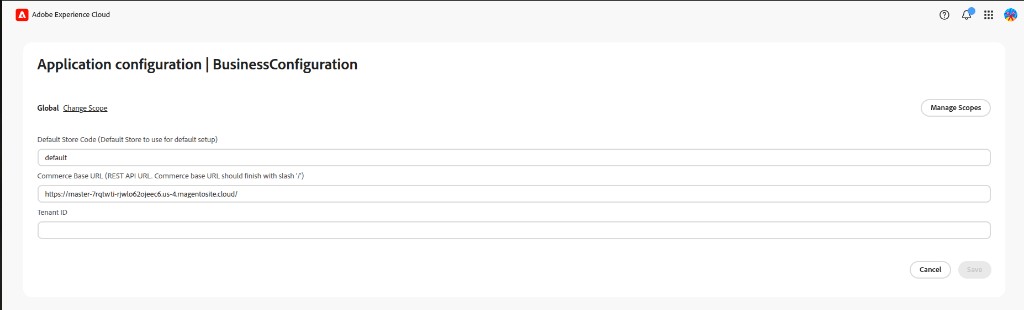
3. In the configuration screen, fill in the required fields:
| Field | Description |
|---|---|
| Default Store Code | Default store to use (e.g. default). |
| Commerce Base URL | Your Adobe Commerce base URL for the REST API. Must end with a slash (e.g. https://your-store.com/). |
| Tenant ID | Optional; used for SaaS. Leave blank if not required. |
4. Click Save.
3.2 Set up IMS technical account in Commerce
The app uses an Adobe IMS technical account to call Magento APIs. You must create a Commerce admin user that matches this account:
In your Commerce instance: create a user role with all permissions, then create a user with the email below and assign that role. This ensures the IMS technical account can access Magento APIs.
1. Get the technical account email
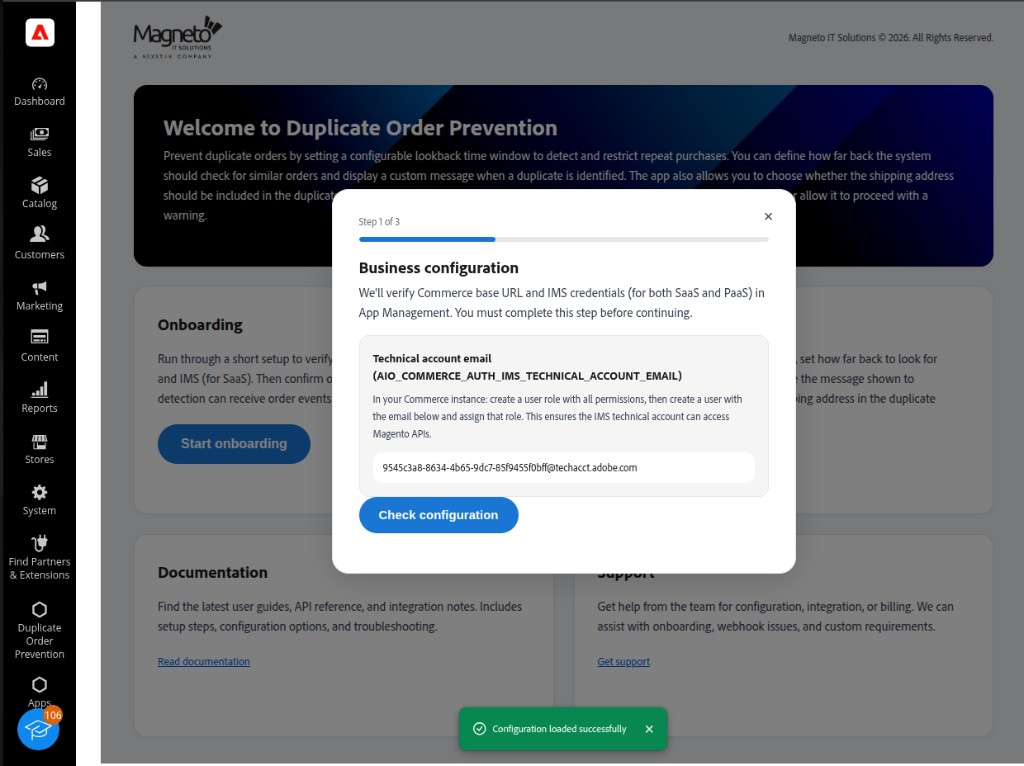
Open Duplicate Order Prevention from the sidebar → Start onboarding. Step 1 (Business configuration) shows the Technical account email (e.g. xxxxxxxx@techacct.adobe.com). Copy this email.
2. Create a user role with all permissions
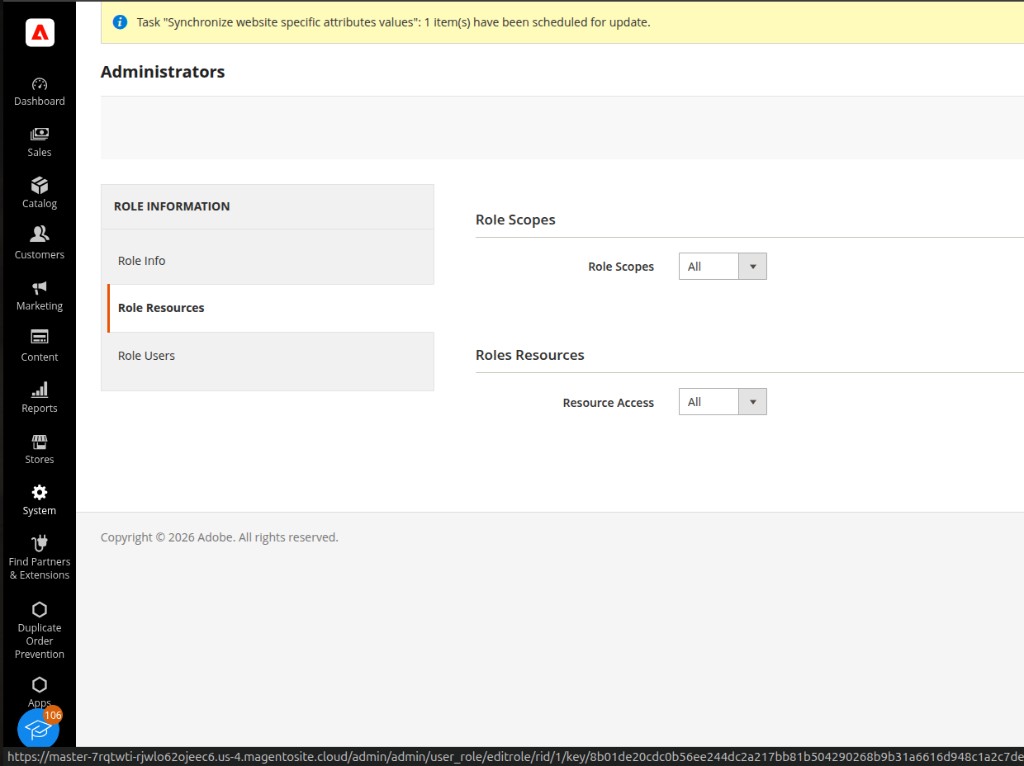
In Commerce Admin, go to System → Permissions → User Roles. Add a new role (or edit an existing one). Open the Role Resources tab and set Resource Access to All. Save the role.
3. Create a user and assign the role
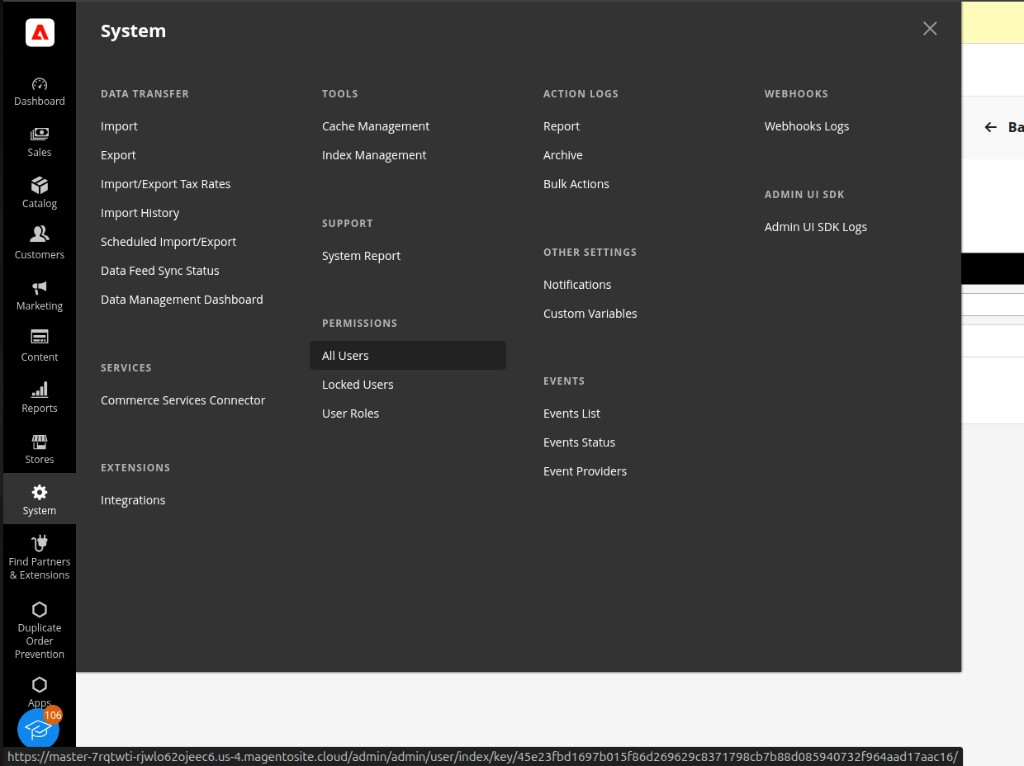
Go to System → Permissions → All Users. Add a new user. Use the same email as the technical account email from step 1. Assign the role you created in step 2.
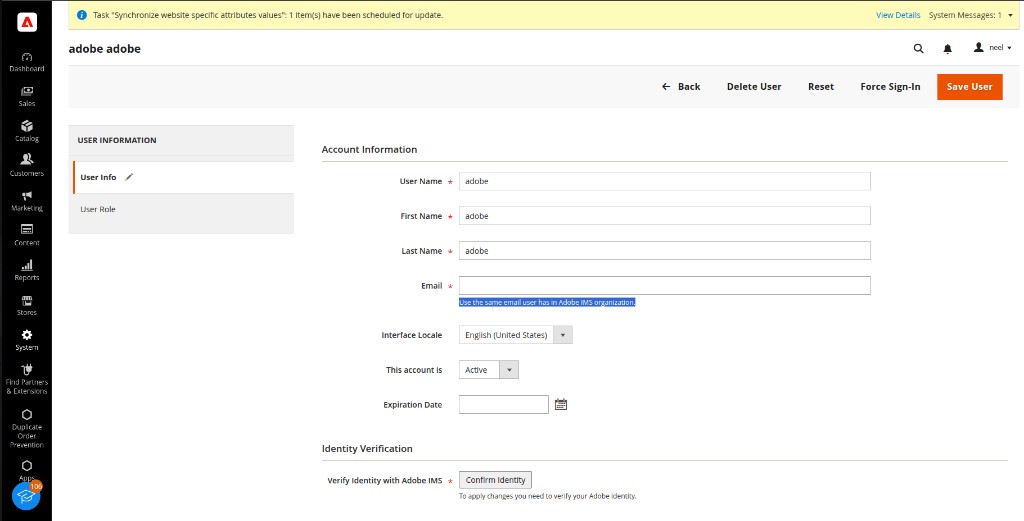
In Account Information, enter the technical account email in Email (use the same email the user has in your Adobe IMS organization). Assign the role and save the user.
4. Verify identity (if prompted)
If your instance uses Verify Identity with Adobe IMS, complete identity verification for the user.
After saving Business Configuration in App Management and creating the user/role in Commerce, continue with Onboarding & Webhooks.
4. Onboarding & Webhooks
After saving Business Configuration and creating the IMS technical account user in Commerce, complete onboarding from the Duplicate Order Prevention app in the Commerce Admin sidebar.
- Open Duplicate Order Prevention from the left sidebar. You will see the main dashboard with Onboarding, Configuration, Documentation, and Support.
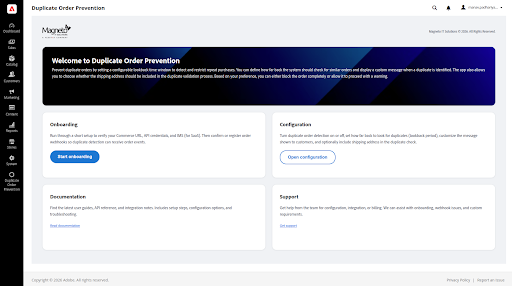
2. Click Start onboarding. The first step is Business configuration: the app verifies your Commerce base URL and IMS credentials (for both SaaS and PaaS) in App Management. Complete this step before continuing.
3. Click Check configuration. If everything is correct, you can continue to the next step. If configuration fails, ensure Business Configuration is saved in App Management and the technical account user (with the email shown) exists in Commerce with a role that has all permissions, then run this step again.
4. Register the webhook: In the same onboarding flow, complete the step that registers the order webhook with your Commerce instance. Click the Register webhook (or equivalent) button when prompted. The webhook is not registered automatically (e.g. not via post-app-deploy)—you must complete this step in the onboarding flow.
5. Finish the remaining onboarding steps. The app subscribes to observer.sales_order_place_before (before) so duplicate detection runs before the order is saved.
5. App Configuration Settings
After onboarding, you can control duplicate detection behavior from the app’s Configuration screen.
- On the Duplicate Order Prevention dashboard, click Open configuration (or open the Configuration modal from the app menu).
- Adjust the settings as needed and click Save.
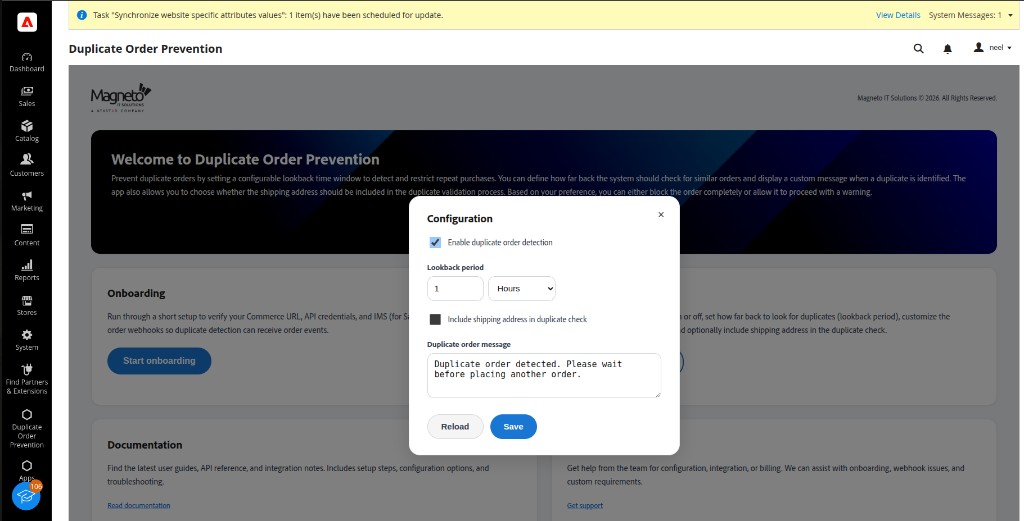
| Field | Description |
|---|---|
| Enable duplicate order detection | Turn duplicate detection ON or OFF. When disabled, orders are not checked for duplicates. |
| Lookback Period | How far back to look in the customer’s order history (e.g. 1 Hour, 10 Minutes). |
| Include shipping address in duplicate check | If enabled, duplicates are only flagged when the shipping address also matches a recent order. |
| Duplicate Order Message | Message shown to the customer when a duplicate order is blocked (the app returns a 409 Conflict response). |
6. App Builder Actions
The app’s core logic runs in Adobe I/O Runtime actions.
Main action: duplication-check (order-manager)
- Package:
order-manager(duplication-check) - Runtime: Node.js
- Purpose: Receives order data from the webhook, validates it against recent order history, and returns allow (200) or block (409).
- Web action: Yes; called by Commerce via the registered webhook URL.
7. Webhook Integration
The app uses a webhook to run duplicate checks when an order is about to be placed.
Registered event: observer.sales_order_place_before (before)
- Method: POST
- Source: Adobe Commerce (observer before order place)
- Description: Fires just before an order is saved. The app validates the order and can block it (409) if it is a duplicate within the lookback window.
Registration
The webhook is not registered automatically. You must register it during onboarding: after saving Business Configuration and passing the "Check configuration" step, use the Register webhook button in the same onboarding flow. You can confirm registration in Commerce under Adobe Services → Webhooks (or the equivalent in your version).
8. Functional Overview
Duplicate Order Prevention reduces accidental duplicate orders by checking new orders before they are finalized.
- Intercept: The app listens for the sales_order_place_before event.
- Analyze: It loads the customer’s recent order history from Commerce.
- Compare: It checks whether the current order (items, shipping address if enabled, etc.) matches any order within the Lookback Period.
- Respond:
- Unique: Order continues normally.
- Duplicate: Order is blocked with
409 Conflictand the customer sees the configured Duplicate Order Message.
9. Troubleshooting & FAQ
❌ Webhook registration fails
- Cause: Commerce Base URL incorrect in Business Configuration, or IMS technical account user missing or without proper role in Commerce.
- Solution: Confirm the Commerce Base URL ends with
/in App Management → Business Configuration. Ensure the technical account user (email shown in onboarding Step 1) exists in System → Permissions → All Users with a role that has Resource Access: All. Re-run webhook registration from the app UI if needed.
❌ All orders are allowed (no duplicates blocked)
- Cause: Duplicate detection is OFF or the lookback period is too short.
- Solution: Open App Configuration Settings in the app and enable duplicate detection and set an appropriate lookback period.
❌ 401 Unauthorized or Check configuration fails
- Cause: IMS technical account user not set up in Commerce, or user email/role does not match.
- Solution: In Commerce, create a user with the exact technical account email from onboarding Step 1, assign a role with Resource Access: All, and ensure identity verification (Adobe IMS) is completed if required. Then run Check configuration again in the app.
10. Support
For technical assistance, setup help, or to report issues, contact the support team.
- Email: support@magnetoitsolutions.com
- Response time: Same business day (Mon–Fri)