
1. Overview
Pinterest Catalog Connector connects your Adobe Commerce store with Pinterest.
The app helps you:
- Sync your product catalog with Pinterest and automatically keep product information up to date.
- Track store orders and send purchase data to Pinterest.
- View Pinterest catalog, order, shopping, advertising, and conversion data from Commerce Admin.
The app brings catalog sync, order tracking, and reporting together in one place.
2. Requirements
Before you set up Pinterest Catalog Connector, make sure you have:
Pinterest Business Account
A Pinterest Business account is required to connect your store. You can't use a personal Pinterest account.
If you only have a personal account, you can convert it to a Business account for free.
Adobe Commerce Admin Access
You need access to your Adobe Commerce Admin to install and configure the app.
Pinterest Ad Account
A Pinterest Ad account is only required if you want to view advertising data in the Reports section.
You can connect Pinterest Catalog Connector without an Ad account, but advertising-related sections in Reports will remain empty.
App Installation
Installing the app is a one-time technical task. View the Installation Guide here. Once you install Pinterest Catalog Connector in Adobe Commerce Admin, you can complete the remaining setup steps in the app.
3. Setup
Setup connects your Adobe Commerce store to Pinterest and gets your product catalog ready to sync.
Store Connection
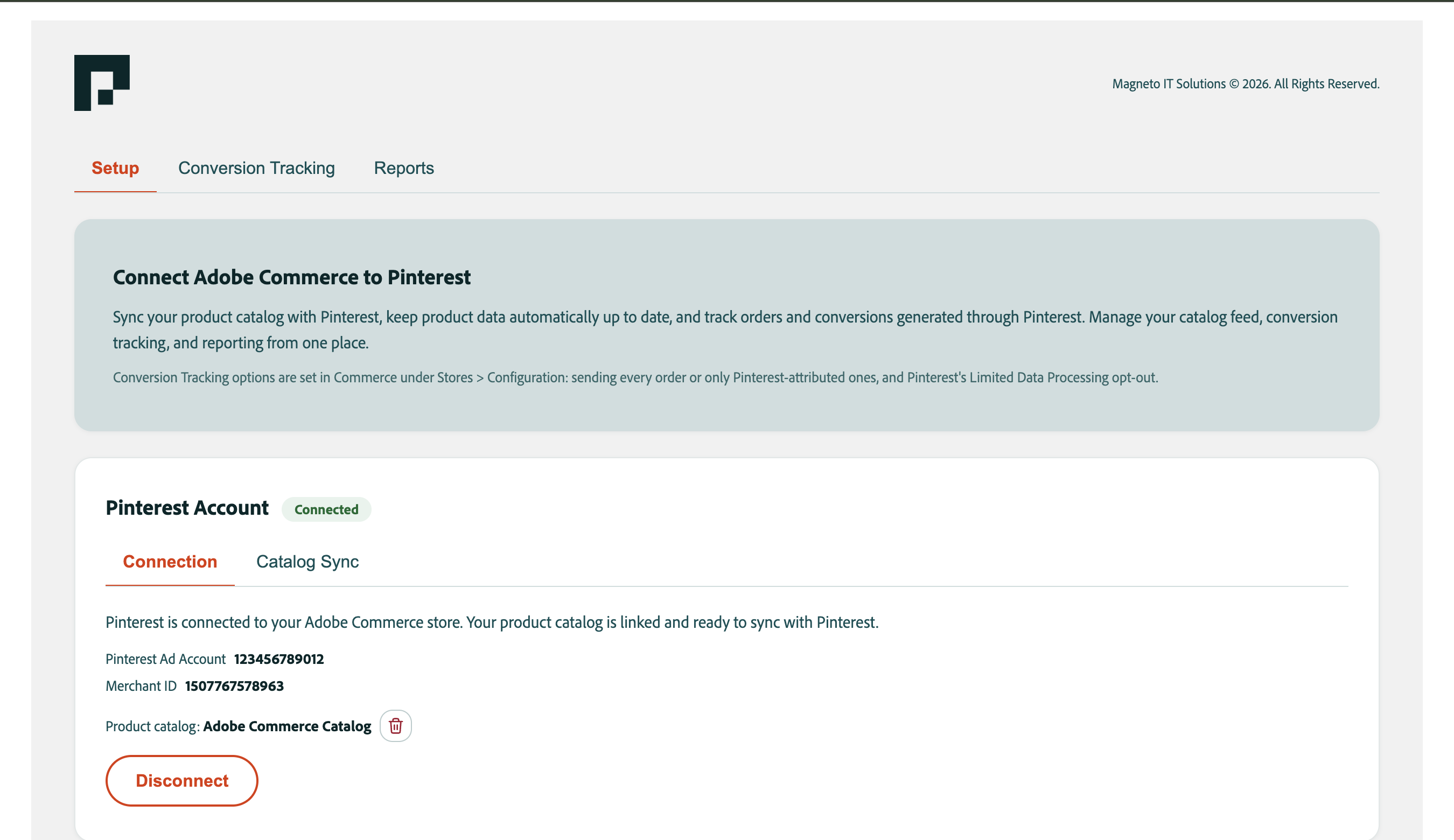
When you open Setup, Pinterest Catalog Connector checks whether your store connection is working and whether any required configuration is missing.
If there is an issue, the app displays an error explaining what needs to be fixed.
If everything is configured correctly, you will see "You're all set."
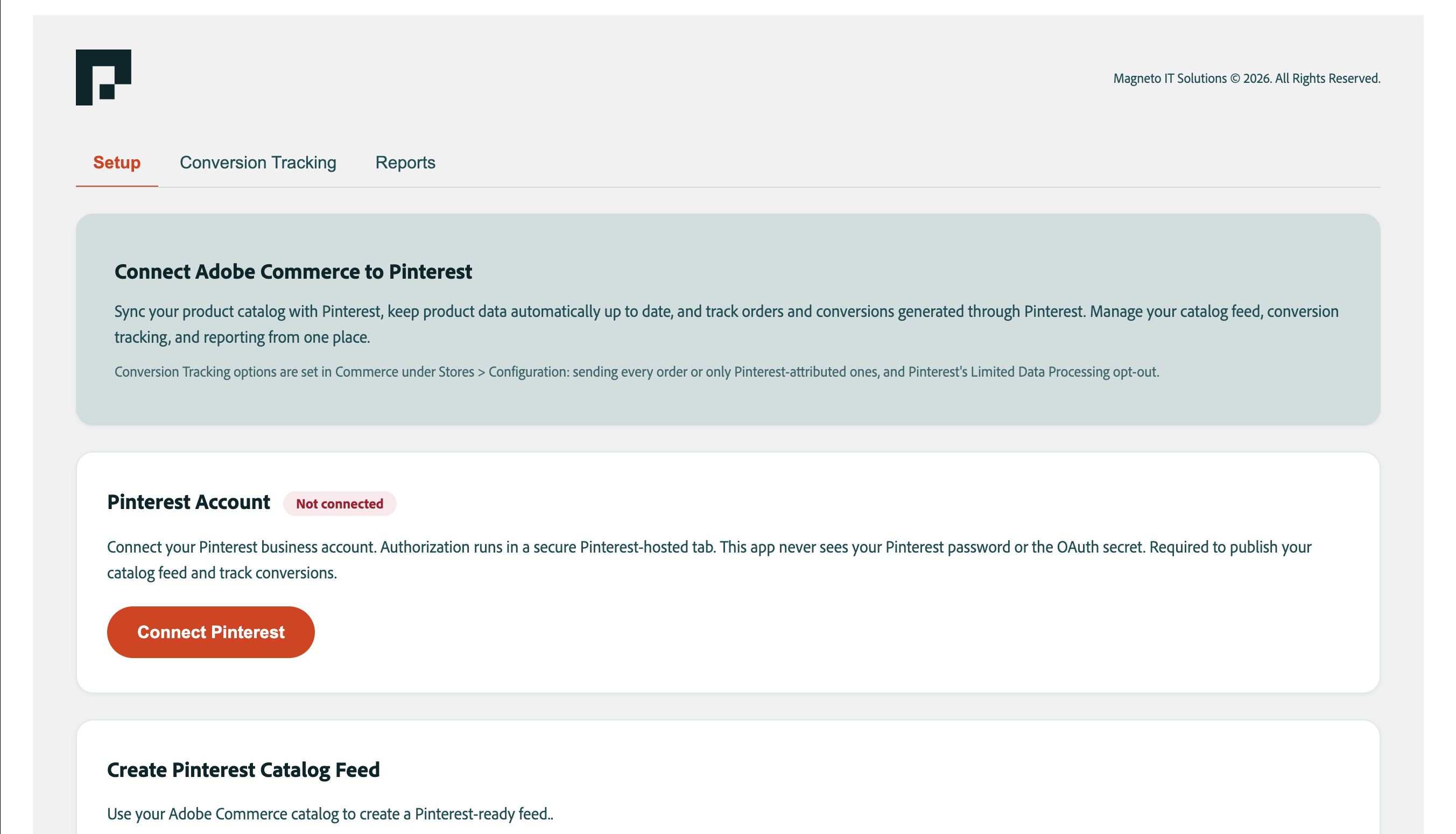
Connect Pinterest Account
- Go to Setup.
- Select Connect Pinterest.
- Pinterest opens in a new window.
- Sign in to your Pinterest account.
- Review and approve the requested permissions.
- Return to Commerce Admin.
Your connected Pinterest account will be displayed in the app.
You can select Disconnect if you need to remove the connection.
Create Catalog Feed
Pinterest Catalog Connector uses your Adobe Commerce catalog to create a Pinterest-ready product feed.
- Open Setup.
- Select Create Catalog Feed.
- The app collects your product information and prepares the feed.
For larger catalogs, this process may take a few minutes.
After the feed is registered, Pinterest reviews the products. This usually takes a few hours.
You can check the progress and number of live products from the Catalog Sync section.
Verify Conversion Tracking
Conversion tracking is enabled when Pinterest Catalog Connector is installed.
To verify that orders are being sent to Pinterest:
- Place a test order in your store.
- Open Order Tracking.
- Check for the test order.
The order should appear within 1–2 minutes.
4. Conversion Tracking
Conversion Tracking controls how store orders are reported to Pinterest.
Conversion Tracking Settings
You can manage these settings from your Adobe Commerce configuration.
Conversion Tracking
When enabled, store orders are reported to Pinterest as sales.
This setting is enabled by default and is recommended to remain on.
Track Pinterest-Attributed Orders Only
When enabled, the app reports only orders attributed to Pinterest rather than all store orders.
This setting is off by default. Keeping it off allows Pinterest to receive the full picture of your store orders and apply its own attribution.
Limited Data Processing
This setting adds a privacy restriction for certain US state privacy laws, including CCPA and CPRA.
Turn it on if your legal or privacy team requires it.
5. Catalog & Feed
Pinterest Catalog Connector keeps your Pinterest catalog updated after the initial feed is created.
When you add products, change prices, or update stock, the app collects these changes and sends them to Pinterest throughout the day.
Catalog Status
Go to Setup → Catalog Sync to check:
- When the catalog was last processed
- How many products are live
- The current catalog status
Rejected Products
The Catalog report shows products that Pinterest rejected and the reason for rejection.
Common reasons include missing:
- Product images
- Prices
- Descriptions
- Availability information
Fix the product information in Adobe Commerce. The next catalog update will send the changes to Pinterest.
Product Feed
Your catalog feed has a permanent web address containing the latest version of your product catalog.
To inspect the feed:
- Copy the feed address.
- Open a new browser tab.
- Paste the address into the browser.
The feed will not open directly inside Commerce Admin because of browser restrictions on downloads within the Admin window.
6. Order Tracking
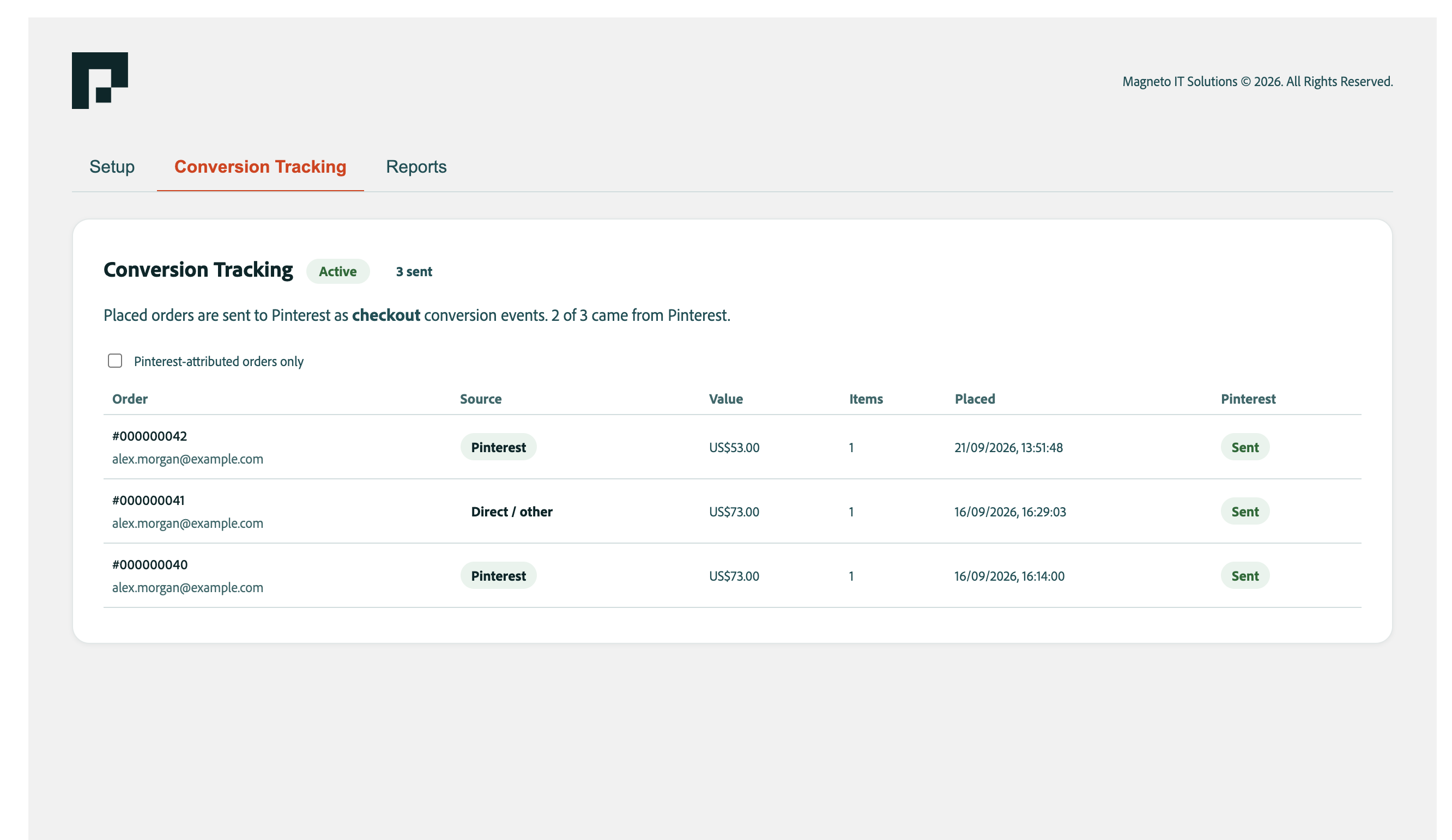
Order Tracking shows the orders being reported from your Adobe Commerce store to Pinterest.
Each order includes information such as:
- Order value
- Number of items
- Order time
- Shopper source
- Whether Pinterest received the order
Orders are normally reported to Pinterest within about a minute.
Order Statuses
| Status | Meaning |
|---|---|
| Queued | The order is waiting to be sent to Pinterest. It should normally move within 1–2 minutes. |
| Sent | Pinterest has received the order. |
| Failed | The order could not be sent. The app retries up to five times before giving up. |
If an order fails, the app displays the reason.
Pinterest Order Source
You can filter the list to see orders where the shopper came from Pinterest.
The app identifies the Pinterest source when that information is carried through the storefront and checkout.
If the source is not available, the order can still be sent to Pinterest, but the Pinterest source will not appear for that order.
Your web team can confirm whether the source information is being carried through checkout.
Duplicate Orders
Each order is reported only once.
If the same order is sent again, the app recognizes the duplicate and does not report it twice.
7. Reports
The Reports section brings Pinterest and store performance data into Commerce Admin.
You can select reporting periods such as:
- Last 7 days
- Last 30 days
- Last 90 days
- This month
- Last month
Overview
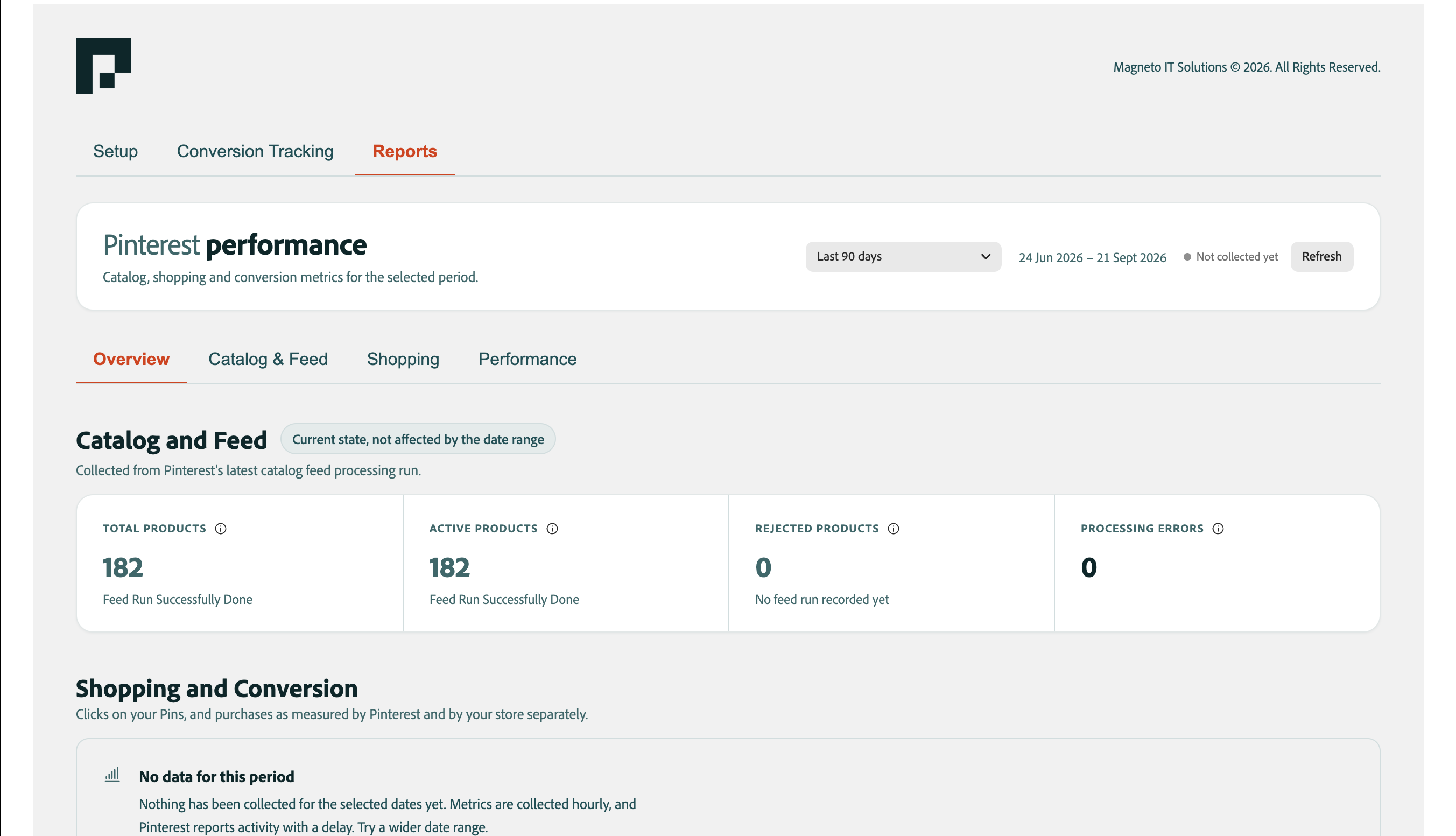
View headline performance numbers and revenue trends for the selected period.
Catalog & Feed
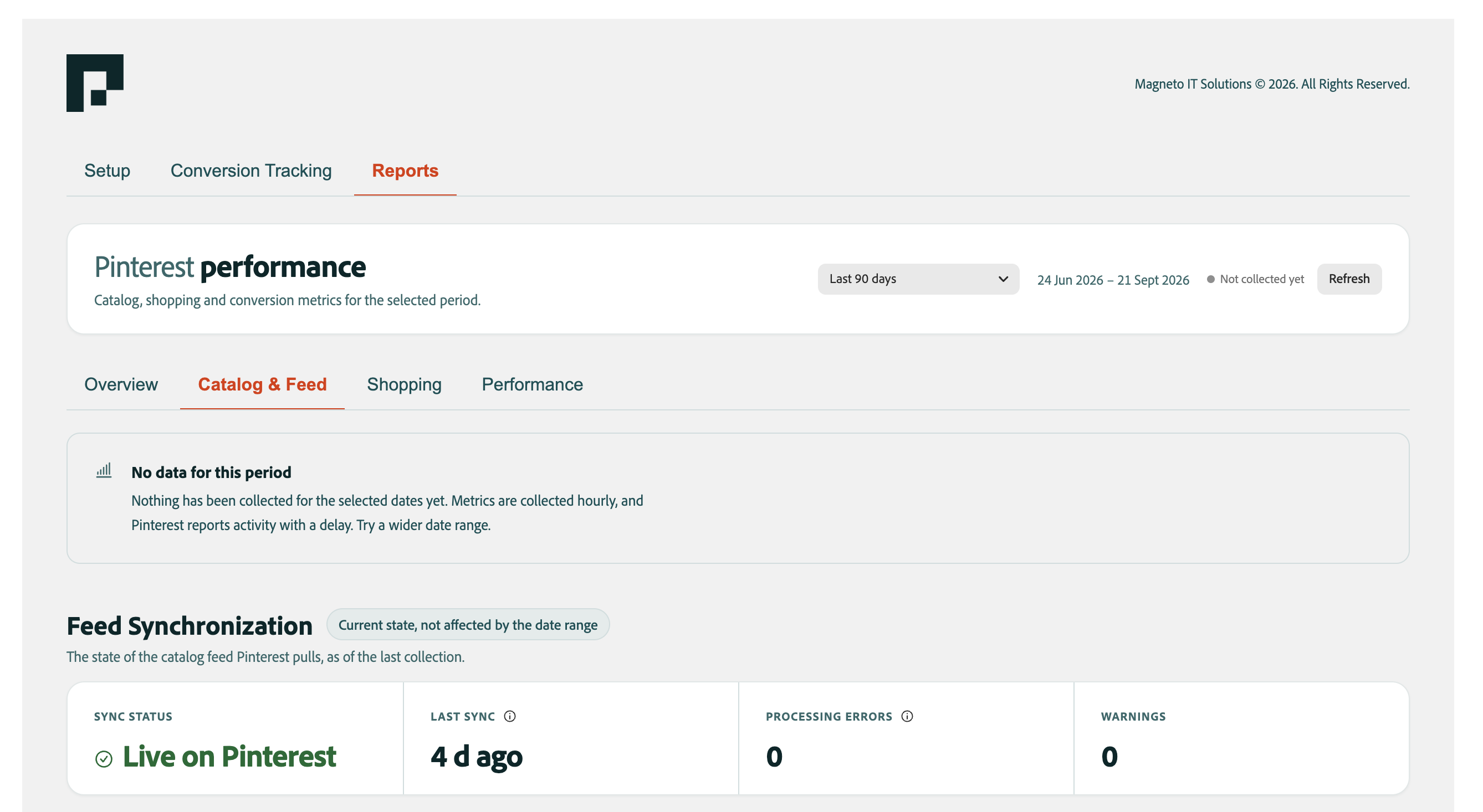
Check your catalog status, published products, rejected products, and feed processing information.
Catalog and Feed data shows the current position of your catalog rather than data for the selected reporting period.
Shopping
View product clicks from Pinterest.
Performance
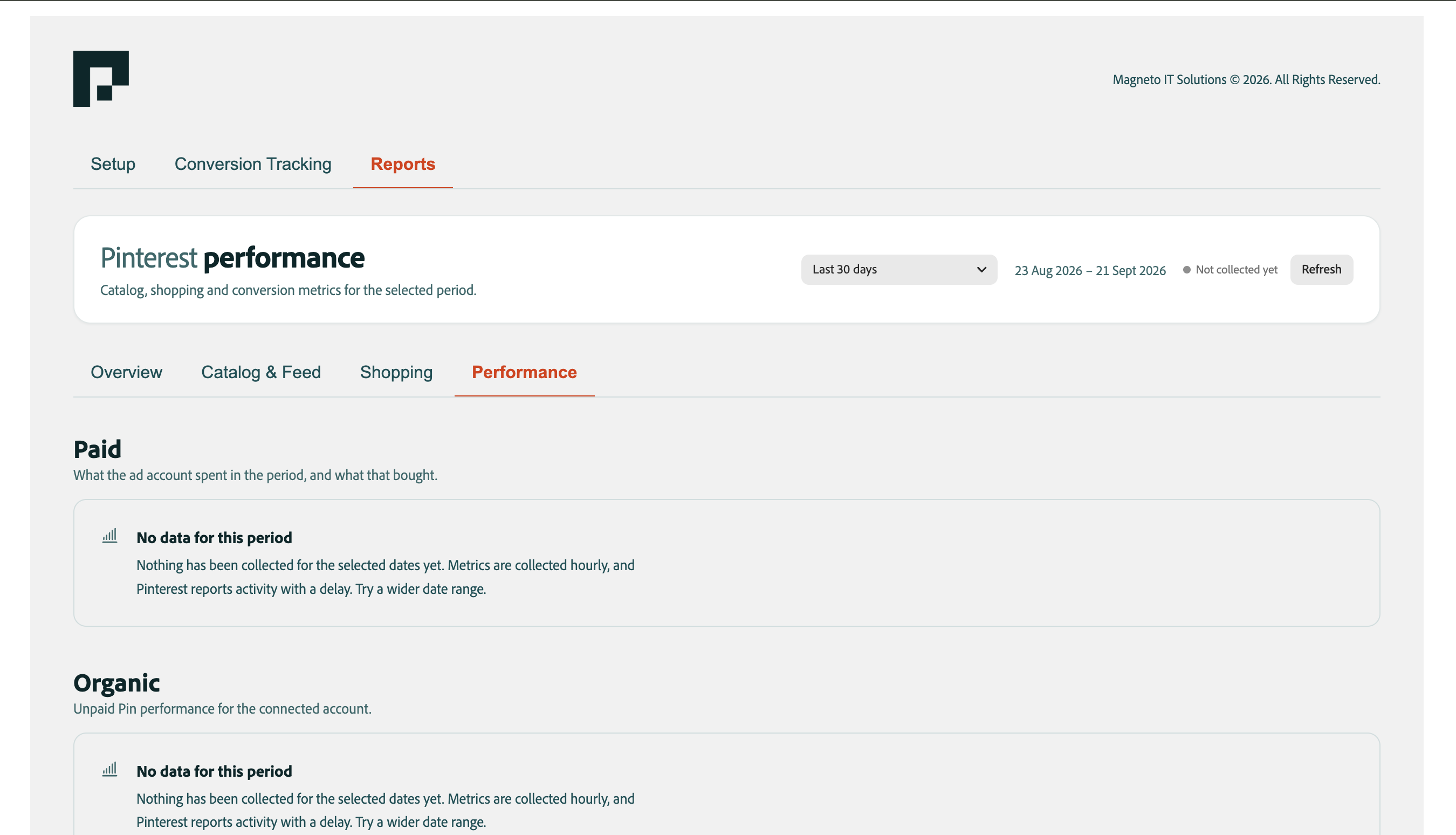
Performance is divided into:
1. Paid
View advertising data such as:
- Ad spend
- Impressions
- Clicks
- Click-through rate (CTR)
2. Organic
View organic Pinterest activity, including:
- Views
- Saves
- Engagement
- Best-performing Pins
- Follower count
3. Conversion
Compare purchases and revenue reported by Pinterest with the figures recorded by your store.
4. Combined
View Pinterest's overall contribution and the split between paid and unpaid activity.
Report Data Freshness
Pinterest data is collected approximately once an hour.
The Reports header shows when the data was last collected.
Because of this, the dashboard can be up to an hour behind the data shown directly in Pinterest.
Empty Report Sections
If no data is available for the selected period, the Reports section displays a message explaining that Pinterest metrics may take time to appear. Try selecting a wider date range or check again later.
Common causes include:
- Required Pinterest permissions were not granted.
- A Pinterest Ad account is not connected.
Zero vs. Unavailable Data
- 0 means there is no activity for that metric.
- — means the data is unavailable.
Pinterest vs. Store Sales
The Conversion section shows Pinterest's sales figures and your store's sales figures separately.
These numbers should not be added together.
Pinterest may attribute a purchase when someone interacts with a Pinterest ad and completes the purchase later through another route. Your store may credit Pinterest only when the shopper arrives directly from a Pinterest link.
As a result, the same order can appear in both figures.
A difference between the two is expected. A large or consistent gap may require further investigation.
8. Privacy & Data Processing
Pinterest uses certain customer information to match purchases with Pinterest activity.
Pinterest Catalog Connector does not send this information in readable form. It converts customer identifiers into a one-way code before they leave your store.
The original information is not stored in the app's logs.
Limited Data Processing
Limited Data Processing provides an additional privacy restriction for certain US state privacy laws, including CCPA and CPRA.
Enable this setting if required by your legal or privacy team.
GDPR Consent
Limited Data Processing is not the same as GDPR consent.
Pinterest Catalog Connector does not display a consent banner or collect shopper consent on your storefront.
Your store is responsible for collecting and honoring the shopper's consent.
If conversion tracking needs to follow the shopper's consent choice, your web team can pass that choice through checkout so the app can apply it to individual orders.
9. Troubleshooting
| Issue | What to check |
|---|---|
| Configuration unavailable | The app installation may not be complete. Ask your technical team to complete the installation through App Management. |
| Store account is invalid | A store user may need to be created using the email address shown in the error. |
| Products are not appearing on Pinterest | Allow a few hours for Pinterest to review the catalog. You can also register the feed again or reconnect Pinterest and approve all permissions. |
| Some products are rejected | Check the Catalog report for the rejection reason. Missing images, prices, descriptions, or availability are common causes. |
| Orders remain queued | Check that Pinterest is connected and that the required Pinterest Ad account is linked. |
| No orders are appearing | Check that Track Pinterest-Attributed Orders Only is not enabled and that Conversion Tracking is enabled. |
| Reports have no data | The first data collection can take up to an hour. Check the last collected time in the Reports header. |
| Pinterest permission is missing | Disconnect and reconnect Pinterest, then approve all requested permissions. |
| Advertising data is empty | Check that your Pinterest Ad account is connected and the required permissions were granted. |
| Pinterest and store sales do not match | This can happen because Pinterest and your store use different attribution methods. Do not add the two figures together. |
| Feed link does not open | Copy the feed URL and open it in a new browser tab. |
10. Support
If you need help with Pinterest Catalog Connector, contact:
support@magnetoitsolutions.com
To help the support team resolve the issue faster, include:
- The section or tab where you see the issue
- What you were trying to do
- The exact error message or text shown on screen